Set the scene.
Choose your role, interview type, and context. Bring your resume or the job you’re aiming for.
 Nudge
Interview practice & live assistance
Practice out loud. Find your words. Bring a little more confidence to the conversation.
From the first practice question to the moment you need a hand. See Nudge in action.
Set your role. Practice out loud. Learn from your feedback.
Captured product UI · Synthetic content · Edited for clarityTurn “I should prepare” into a conversation you can learn from.
Choose your role, interview type, and context. Bring your resume or the job you’re aiming for.
Answer a role-specific interviewer in your own voice. Suggested answers give you a starting point.
Revisit the recording and feedback. See what worked, then practice what needs a little more attention.
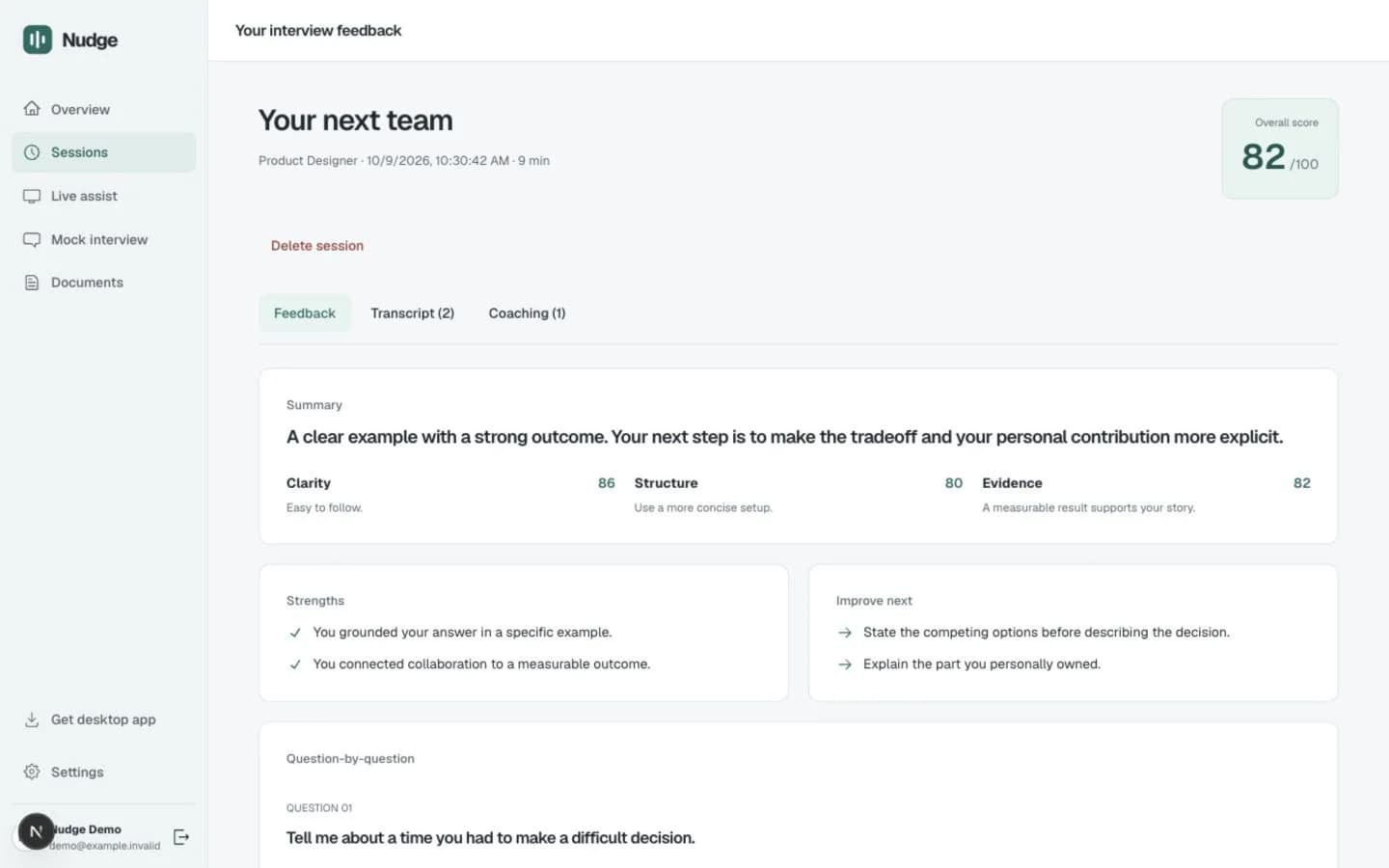
Live Assist listens to shared conversation audio and suggests answers grounded in the context you choose.
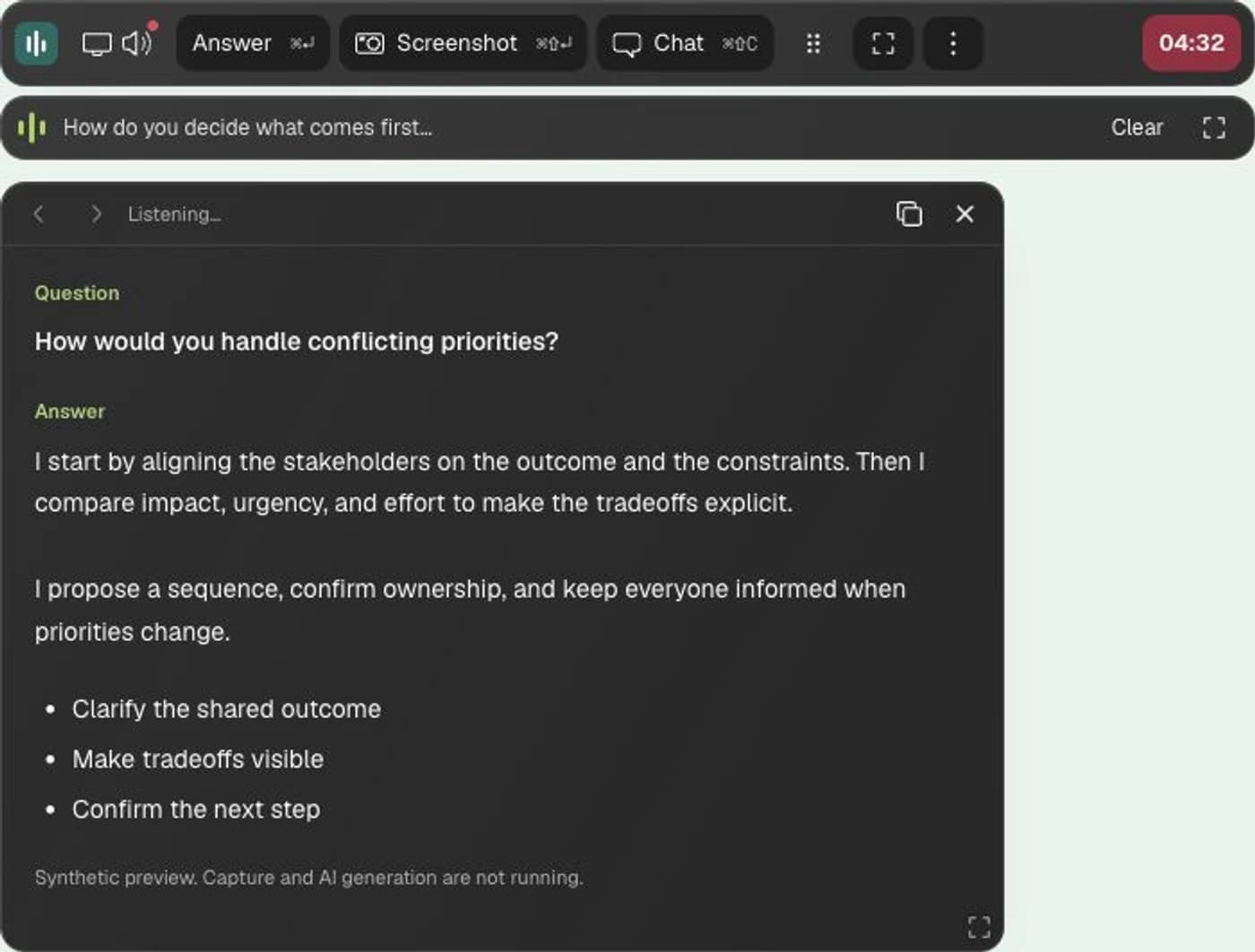
A compact floating panel keeps suggested answers close to the call.
Manually capture a screen when a coding problem or visual needs context.
Ask a follow-up, adjust the language, and choose an answer style.
Choose the way you want to practice and get support.
Mock interviews, documents, feedback, and supported-browser Live Assist. Start without installing an app.
The same Nudge account and workspace, with a native Mac floating interface or the Windows desktop client.
Your conversation, your choices
Choose the documents and capture source. Confirm permission before recording. Control whether your live session is saved.
Read the Privacy PolicyYes. Mock interviews work in your browser. Browser Live Assist requires Chrome or Edge with tab audio and floating-panel support.
In the browser, Nudge receives audio from the source you explicitly share. The native Mac app captures system audio from running apps independently of the window selected for screenshots. Live Assist leaves your microphone off.
Yes. Add documents to your account and choose the ones you want to use for a session. You can also choose an answer profile for tone, length, and structure.
Saved sessions expire 30 days after they end. Physical deletion runs through the server’s scheduled retention sweep. Uploaded documents remain until you delete them or your account. Live sessions with saving off retain metadata only, while Gemini still processes the conversation.
Nudge supports English and Vietnamese. You choose the answer language when setting up your interview.
Direct entire-screen exclusion is not yet verified. Clean Desktop is a separate filtered sharing option. Confirm what a receiving participant can see before sharing.